CM/EBIA
CM/EBIA is a ConSol CM add-on which allows to create reports directly in the Web Client. CM/EBIA uses a licensed enterprise version the third-party application Metabase, which is integrated via SSO. The created reports are shared with the regular users as dashboard widgets.
The following figure illustrates how CM/EBIA integrates with ConSol CM:
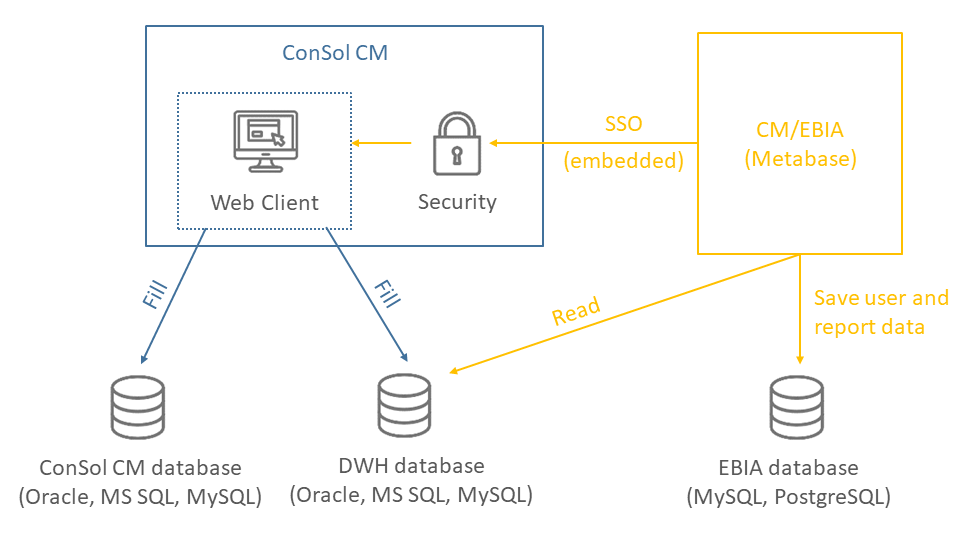
Figure 2: Architecture of ConSol CM with CM/EBIA
Requirements for CM/EBIA
The following system requirements apply for CM/EBIA:
- ConSol CM version 6.13.0.0 and up
- Java 11 or 17
Please also see the official system requirements on the TecDoc server.
Installing and setting up CM/EBIA
CM/EBIA needs to be licensed separately.
The first step to use CM/EBIA is to install and set up the Metabase application:
- Download the Metabase JAR file from https://downloads.metabase.com/enterprise/latest/metabase.jar.
- Start the Metabase application with the following start command:
java -jar metabase.jar
You can set the following variables:
- -DMB_SESSION_COOKIE_SAMESITE: None, Lax or Strict. If Metabase is installed in a different domain than ConSol CM, you must use None.
- -DMB_JETTY_PORT: The port of the Metabase application. The default port is 3000.
- Open the Metabase application. It runs on port 3000 by default. Create the administrator account. You can add the database connection in this step or later.
- Go to Settings -> License and Billing, enter the license key provided by ConSol and click Activate.
- Go to Settings -> General. The value of the ConSol CM system property cmas-analytics, metabase.url needs to match the value in Site URL, e.g. https://localhost:8080/analytics.
- Go to Authentication -> JWT. Set JWT Authentication to Enabled. Enter the URL of the ConSol CM system in JWT Identity Provider URI, e.g. https://localhost:8080/analytics?auth=metabase. Paste the value in String used by the JWT signing key to the ConSol CM system property cmas-analytics, metabase.secret.key.
- Go to Embedding. Enter the URL of the ConSol CM system in the field Full-app embedding.
- Enter the URL of the Metabase application in the ConSol CM system property cmweb-server-adapter, csrf.domain.white.list.
The next step is to add the databases. These are the databases whose data is used for creating analysis in CM/EBIA. Usually, this is the DWH database with some preconfigured cubes.
It is also possible to connect the ConSol CM production database to CM/EBIA. This is not recommended, so you must check with the ConSol CM support first.
Please proceed as follows to add a database:
- Open the CM/EBIA administration.
- Go to Databases and click Add database.
- Enter the information of your database and click Save.
CM/EBIA uses the enterprise version of the third-party product Metabase. Therefore, the ConSol CM system must be allowed to access the internet to validate the token which gives access to the advanced Metabase features. See https://www.metabase.com/docs/latest/enterprise-guide/activating-the-enterprise-edition.html for further details.
Fine-tuning CM/EBIA
The following settings, which can be made in the CM/EBIA administration, have been proven useful.
Section General:
-
In Friendly Table and Field Names, use the setting Only replace underscores and dashes with spaces to stop CM/EBIA from trying to interpret and beautify column names.
Section Localization:
- Do not change the settings Report Timezone. Use the database default instead.
- For German environments: change the date, time, decimal number format and currency.
Section Data Model:
- Edit the display names of your cubes and most used tables and columns to provide more user-friendly labels. This affects both the labels used for the tables and table columns when creating questions and the labels displayed to the end users.