Usability improvements for the Web Client
The following usability improvements for the Web Client have been made.
More friendly generic error message (#653675)
The generic runtime‑error message has been updated to be more user-friendly and provide clearer guidance.
Grouping case list by scope (#661943)
The option Scope has been added to the Group by selector in the view settings. This allows the users to group the cases by their state in the process. The scopes are ordered by their sort index from the workflow. When grouping by scope, the Scope option is not shown in the Sort by setting.
There is one group for each scope present in the workflows used by the queues whose cases are shown in the view. If the view includes scopes as view criteria, only these scopes will have groups, as the other groups would be empty.
The page customization scope accordionTicketList has been extended by the attribute ticketDataConfigScopeGrouping, which allows to configure the displayed information for each case when the case list is grouped by scope.
Expanding all case entries (#624101)
The Show selector in the Communication and history section of cases has been extended by the option All entries (expanded), which allows the users to fully expand all case entries. This includes folded comments and emails, entries affected by lazy loading, and hidden technical entries. This enhancement is particularly useful for users who need to perform browser-based searches across all case entries, or wish to read through the complete case history.
Brackets on comment edit history link removed (#659413)
The brackets around the link shown in the header of edited comments in the case history have been removed because they are not needed anymore since the header elements are now separated by pipes.
Contact modal improved (#665037)
The modal window which is shown for creating a contact during case creation or editing a contact on the case page has been improved by showing the Create and add and Cancel buttons in the modal footer.
In addition, an X icon has been added to the top‑right corner of the modal for creating a contact.
Improved wording for document templates (#666253)
The template selector in the Document tab now has the label Document template to match the general terminology.
Filtering the case history for comments only (#666399)
The Show selector in the Communication and history section of cases has been extended by the option Only comments, which allows the users to show only the comments added to the case. This is particularly useful for locating specific comments in cases with extensive email communication.
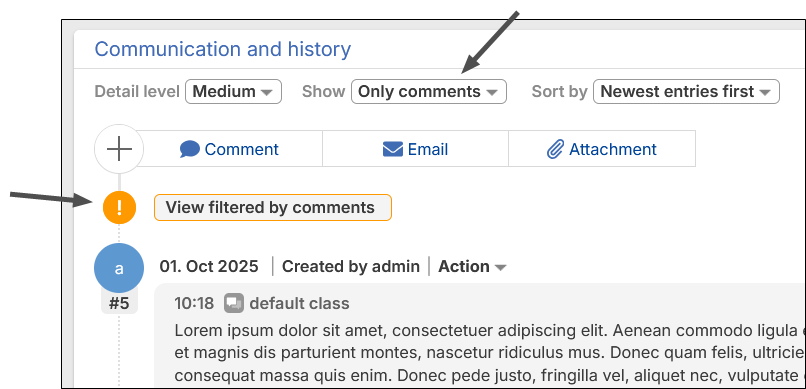
The new filter option works in a similar way as the text class filter:
- When opening another case, the previously selected option - Only emails and comments or All entries is restored.
- When Only comments is selected, an orange exclamation mark with the warning View filtered by comments is shown, so that the users are aware that they do not see the whole communication.
New date picker (#666429, #668666)
The date picker component has been replaced by a more modern one. It brings a fresh layout and better usability, especially for selecting dates from past or future years. When clicking the header, you can now directly switch to other months and years, making date selection more convenient and efficient.
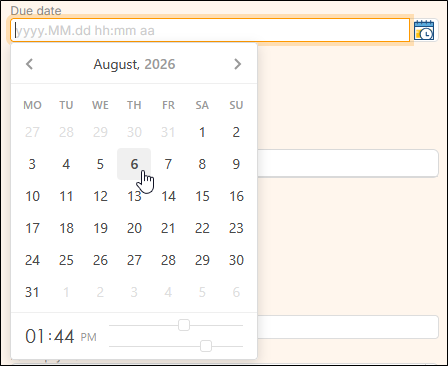
In addition, times are now displayed in the same component, so that they can be provided together with the date. The icon which opens the date picker now features a clock if the field contains both date and time.
Alternatively to making a manual selection in the date picker component, you can directly type the date and time into the input field.
Better handling of dashboard problems (#666546)
The Web Client now prevents a faulty dashboard widget from rendering the entire application unusable. If an error occurs while loading a widget on the welcome page, the client redirects to an empty welcome page and displays an error message. This ensures the rest of the Web Client remains functional.
Improved cases section on contact and resource pages (#666729)
The display of the section for cases on contact and resource pages has been adjusted to improve clarity for the users.
- If there are no cases, the header shows No cases or No related cases and the section is empty except for an image.
- If the cases are not shown due to the selected table filters, the header shows Cases or Related cases and the section contains the table filters with a message that there are no cases matching the selected filters.
- If the table contains cases, the header shows the number of cases in parentheses and the section contains the full table.

Additional option for creating contacts in selector (#667989)
The selector which is shown when searching for a contact on the case page has been enhanced by an option to open the contact creation modal directly.
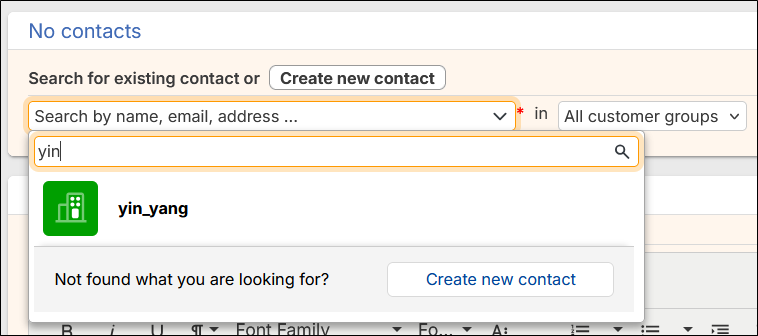
Therefore, the user does not need to close the selector anymore to start contact creation.
Removing template attributes from emails and comments (#667992)
The template attributes objectid and objecttype are no longer included when saving or sending emails and comments based on templates. This prevents processing errors.
Search for deactivated contacts and resources (#668292)
The checkbox Deactivated incl. which was available in the detail search for contacts and resources has been replaced by a selector Status (active / deactivated). This option allows to search explicitly for deactivated contacts and resources. It is shown at the top together with the other default search criteria.
Default customer group in case creation (#668391)
When a default customer group is defined in the user profile, it is now preselected in the customer group selector when searching for a contact on the case page, e.g. during case creation.
Improve message for column configuration in detail search (#668732)
The message displayed when trying to add a column to a detail search result table on the Resources tab without first selecting a resource type has been updated. Users now see a clear instruction that they need to select a resource type and start the search before they can add columns.