AI agent for CM/Track (#668596)
CM/Track has been extended with an AI agent which can help the users with the following actions:
- Search the FAQs for information to solve a request
- Search their own cases
- Create a new case based on a request description
- Add a comment to an existing case
This improves the self-service capabilities of CM/Track as the agent helps the users to solve their requests on their own based on information available in the FAQs, so that they only create a case as a last resort.
The AI agent can only be used together with a Large Language Model (LLM). The LLM need to be provided by the customer. It is not in scope of the delivery.
The quality of the agent interaction depends on the agent and the model. You need to use a model with agentic capabilities, as for example Anthropic Claude or OpenAI GTP 5.5 or higher.
CM/Track changes
The icon to open the AI agent is displayed in the upper right corner of the menu bar.
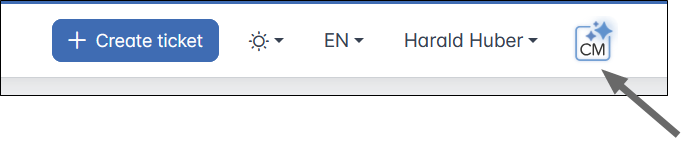
It opens a sidebar where the users can send messages and see the conversation history. The user can start a new conversation, close the sidebar or cancel a message they have just send. The width of the sidebar can be adjusted using the handle in the middle.
Search FAQs
The user describes his problems and the agent replies with a summary of related information from the FAQ cases.
Search own cases
The user describes which information he needs and the agent replies with the respective information from the user's cases.
Create case
When the user wants to create a new case, the agent prefills the case creation mask with the data from the conversation. If needed, the agent asks the user for clarification regarding the desired field values. The user confirms the creation by clicking the regular Create ticket button.
Add comment
To add a comment, the user instructs the agent about the text to add and the agent adds the comment automatically. The user needs to click the Reload button in the sidebar to see the changes. If the case is not open yet, the button is called Go to ticket instead.
Web Admin Suite changes
The Portal configurations page has been extended with an AI agent section with the following settings:
- Show AI agent: Determines of the AI agent is available in the portal.
- System prompt for AI agent: Select the system prompt which should be used for the AI agent. The default prompt
ai agent for track promptis created automatically on update and setup. It is available on the Prompts page. - System prompt for case prefill for AI agent: Select the system prompt which should be used to define the prefill behavior for case creation. The default prompt
ai agent for track prompt prefillis created automatically on update and setup. It is available on the Prompts page. - LLM connection for AI agent: Select the LLM connection to be used for the AI agent.
- Skills for AI agent: Select the skill groups to be used for the AI agent.
Usually, it is not needed to modify the system prompts. Only edit them if the agent does not work properly and test your changes thoroughly.
You can use skills to enrich the agent with information about your system, e.g. to describe the different queues where the users can create cases, and to fine-tune the agent's reactions to certain inputs.
The AI agent requires the MCP server introduced in MCP server for using external AI agents (#668409) for some of the actions performed in the background. The URL is set in the new system property ai.agent.mcp.url of the module cmas-core-server. The AI agent has a more limited scope, not all available MCP tools are needed. The setting MCP tools used by embedded AI agent has been added to the General tab of the Global portal settings page to limit the tools which can be used by the AI agent in CM/Track.
The required values are added automatically, and you do not need to change it unless you want to increase the agent's capabilities beyond the default.
The Data directory page has been extended with a subfolder ai/skills, where you can provide skills for the AI agent. Create a subfolder for each group of skills and another subfolder for each skill in the group. In the latter, you need to place a markdown file called SKILLS.md which contains the actual skills' descriptions. To enable a group of skills to be used by the AI agent in CM/Track, you need to enter the group's folder name in the new system property ai.agent.skills.TRACK (module cmas-core-server). The property can hold a comma-separated list of several skill groups.
Example: Users can create cases in several queues, and it's hard to find the right queue based on the queue name alone. You create subfolders queueMapping/queues in the AI directory and place the SKILLS.md in the queues subfolder. In the document, you describe how the agent should choose the right queue. Then you add the value queueMapping to the property ai.agent.skills.TRACK.
The option Skin and web resource files on the Staging export page has been renamed to Data directory (skin, web resources, AI agent skills) to clarify that the AI agent skills will be exported as well.