S3 storage for attachments (#668230)
It is now possible to store case attachments and inline images contained in comments and emails in an Amazon S3-compatible object storage instead of the ConSol CM database. This storage model reduces database size by removing the objects which occupy most space in the database.
Contact and resource attachments and inline images in rich-text fields are not covered by this change.
The S3 storage is supported both for regular and cluster installations.
Web Admin Suite changes
The page Attachment storage has been added to the System settings menu. It allows to enable the attachment transfer to the S3 storage and contains all the relevant settings:
- S3 storage enabled: Enables background synchronization and processing of files stored in S3-compatible storage. Set to True to start using S3.
- S3 endpoint: Base URL of the S3-compatible storage service used for attachment operations.
- S3 region: Region identifier used when connecting to the configured S3 bucket.
- S3 bucket: Name of the bucket where attachments are stored and processed.
- S3 credentials mode: How S3 credentials are resolved. Static uses the configured access key and secret key. AWS IAM / Pod Identity resolves credentials from the AWS default provider chain (EKS Pod Identity, IRSA or instance profile) and requires no keys.
- S3 access key: Access key used to authenticate requests to the S3-compatible storage.
- S3 secret key: Secret key paired with the access key for S3 authentication.
- S3 path style enabled: Use path-style bucket addressing instead of virtual-hosted-style requests.
- Synchronization thread polling seconds: Defines how often synchronization workers check for new attachments to process.
- Synchronization batch size: Defines how many items a synchronization worker takes in a single processing batch.
- Database attachment scanner thread polling seconds: Defines how often the attachment table scanner checks for new attachments to process.
- Database attachment scanner batch size: Defines how many ConSol CM attachments are processed at once
- Attachment minimal size: Attachment minimal size (in kilobytes). Below this value, the attachment is stored as a local attachment in the database
- Attachment minimal age: Attachment minimal age (in days). Younger attachments will not be sent to the S3 storage
- Synchronization threads: Specifies the number of parallel synchronization workers processing the CM-S3 synchronization queue.
- Processing lock timeout seconds: Determines how long a processing lock is kept before it can be considered expired.
- Deletion batch size: Sets how many attachments can be removed in one deletion batch.
- Script name: Optional. Select a script of the type Attachment storage to define which attachments should be transferred to the S3 storage. This is particularly useful for testing the S3 integration with specific cases.
You can check if the connection to the S3 storage works correctly by clicking the Test connection button at the bottom of the page.
The synchronization starts immediately after saving the settings.
In addition, the Web Admin Suite dashboard has been extended with the S3 content synchronization widget, which shows the synchronization status. You can open the details to see the attributes from the new health check which was introduced for the S3 endpoint. It checks if the S3 sychronization is enabled and the connection works correctly. In addition, it returns information about the status of the transfer queue so that the administrator can see how many attachments are already transferred, how many are in processing and how many are pending.
The ContentFileScannerService, S3DeletionService and S3SynchronizerService have been added to the Services page.
Architecture and synchronization flow
Attachments are migrated to S3 asynchronously in the background according to the specified size and age limits. Once an attachment has been transferred successfully, it is removed from the database. The attachment's metadata and the information about its location in the S3 storage remains in the database.
The clients access attachments directly from S3 via the respective API.
The following figure illustrates the architecture:
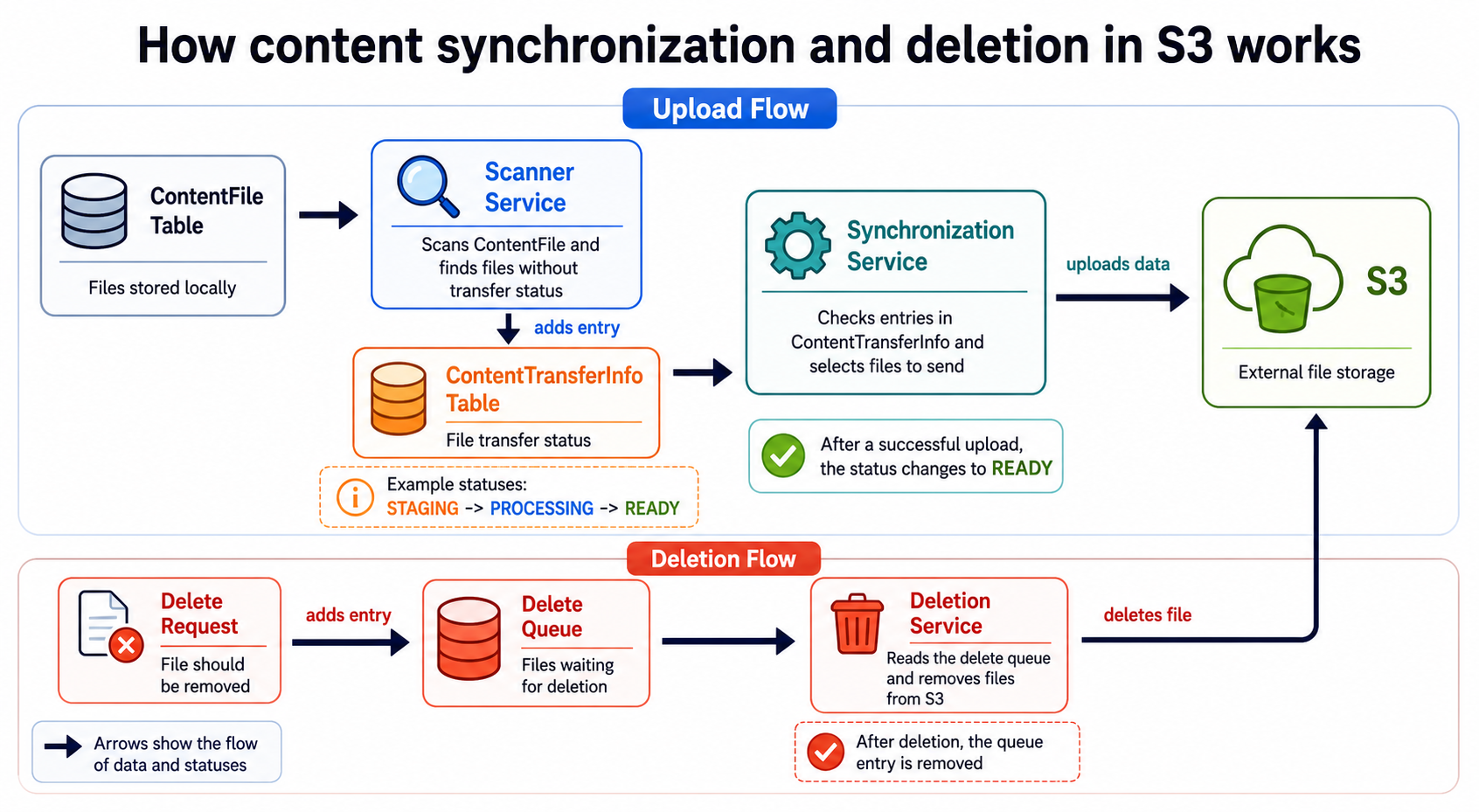
Once synchronization is enabled, existing attachments are migrated automatically. Disabling the synchronization stops the transfer of further attachments, but does not prevent access to attachments already stored in S3.
The method restoreContentToLocalStorage has been added to the class ticketContentService of the ConSol CM API to allow restoring attachments from S3 back to the database for specific cases. When using this method, the corresponding attachment is not removed from S3.
The method synchronizeContentToExternalStorage has been added to the class ticketContentService of the ConSol CM API to allow testing the S3 storage with the attachments of single cases.
To shrink the database size after having transferred the attachments to the S3 storage, you need to reclaim the space in the database. Please follow the instructions in the documentation of your database.